The VS Code extension in detail
A tour of every screen of the Archestack extension for VS Code: what it shows, what it does and how to get to it. Archestack in VS Code is the guide to working with it; this page is the detail. The screenshots show Service Planner, a small app for planning service jobs onto technicians, running as a project on the machine.
The project, its code and the app side by side
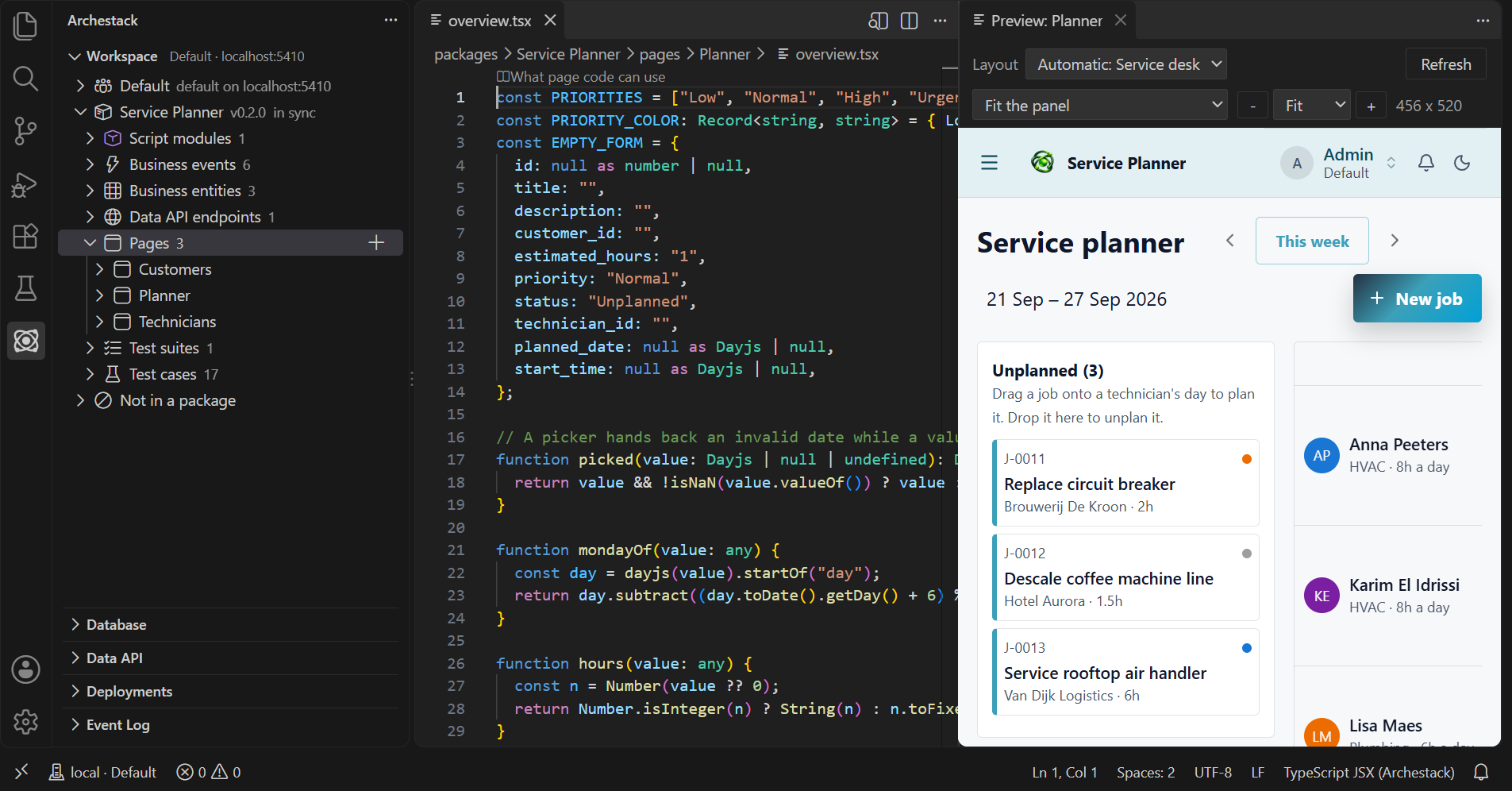
The Archestack view in the activity bar lists the repository's packages and
what is in them. The editor holds a page's code, and Open Preview to the Side
renders that page beside it with the project's own data, following every edit, saved or not. It
is drawn in the app layout the published app puts around it. The status bar shows where the
window is connected: here local, the project.
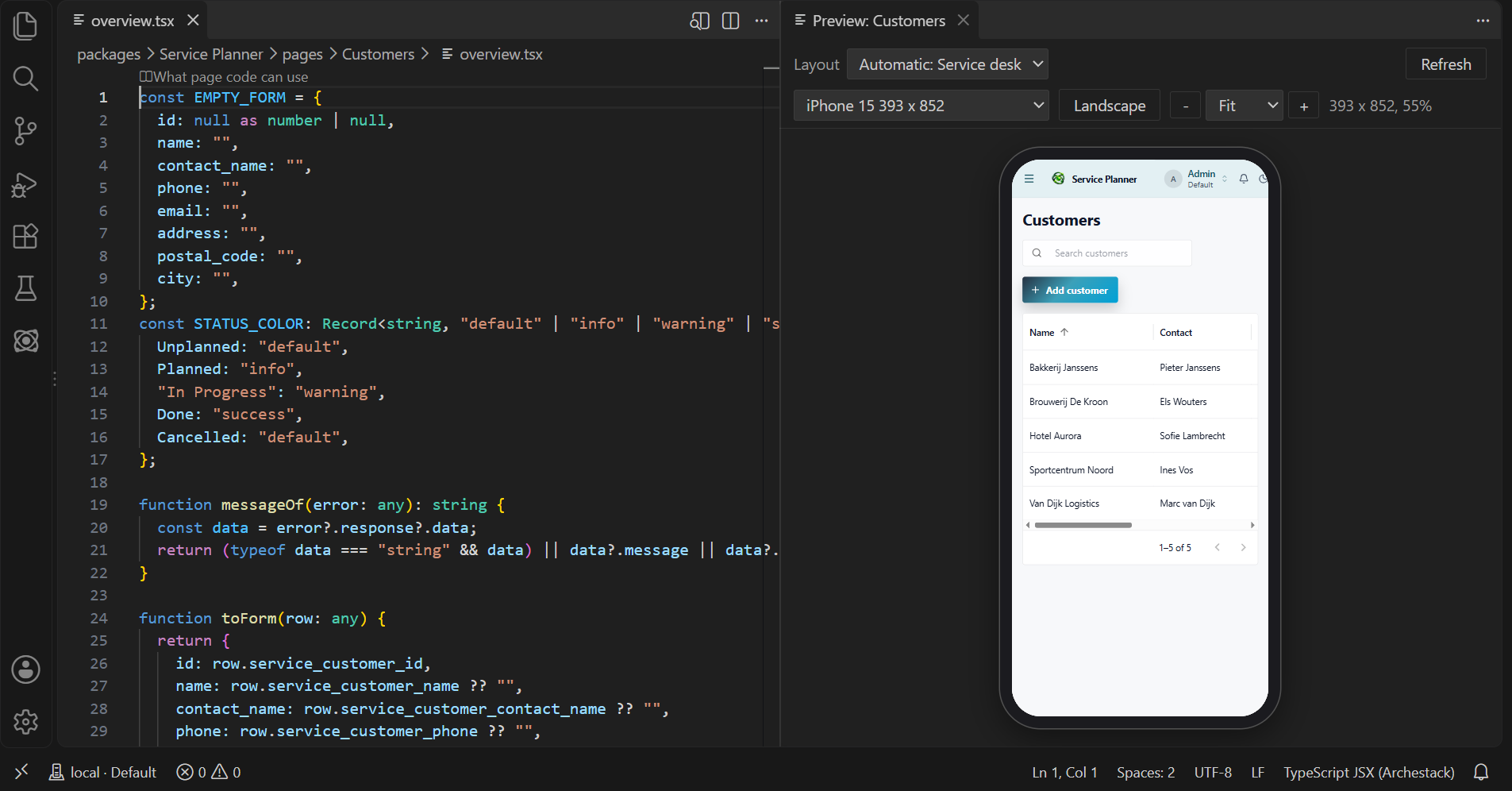
The preview's toolbar picks what the page is drawn in and on. Layout is the app layout around it: Automatic names the one the published app would use and says why when you hover it, or pick another layout, or none. The device list holds phones, tablets and desktops at their real sizes, plus a size of your own; a phone or tablet turns to landscape, and zoom fits the device into the panel or shows it at a percentage. The app inside measures the device's width, so the page takes the form it has on that device. The next preview opens on the device you picked last.
The Workspace view
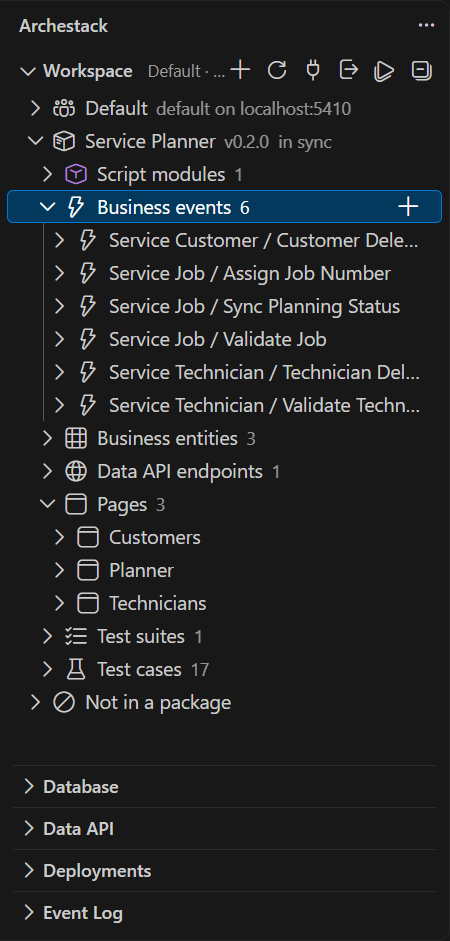
The first node is the workspace itself, with its address. Under it, every package of the repository lists its artifacts by kind, each with a count: script modules, business events, business entities, pages, test suites, test cases and tables. In sync after a package's version says the project has what the folder has; otherwise every artifact carries a mark, the way git marks files.
- Clicking an artifact opens its file, or its form; a page or template opens as its preview.
- Go to Code, the button on an artifact's row, opens its code straight away, past a page's preview; an artifact without code has Edit Settings there instead, which opens its form.
- + on a kind or a package writes a new artifact's files.
- The run button on a package, a suite or a case runs those tests.
- Right-clicking offers Delete, Open in Builder and the rest.
The status bar list
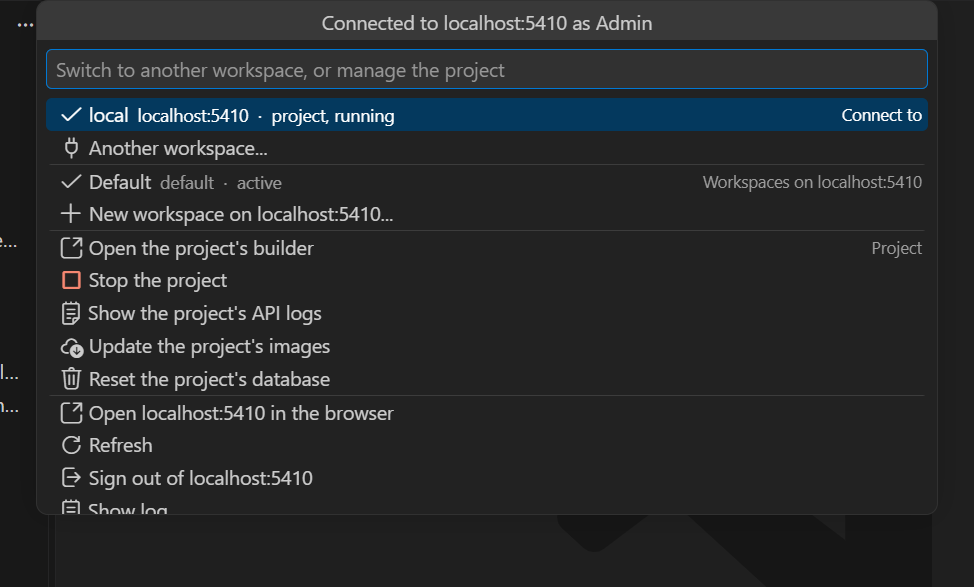
Clicking the status bar item opens one list for everything about the connection: the project and whether it runs, the other workspaces on the same address, and the project's actions. From here you open the project's builder in the browser, stop the project, read the API's logs, or reset its database, which throws the data away and loads the repository in again.
Settings in forms
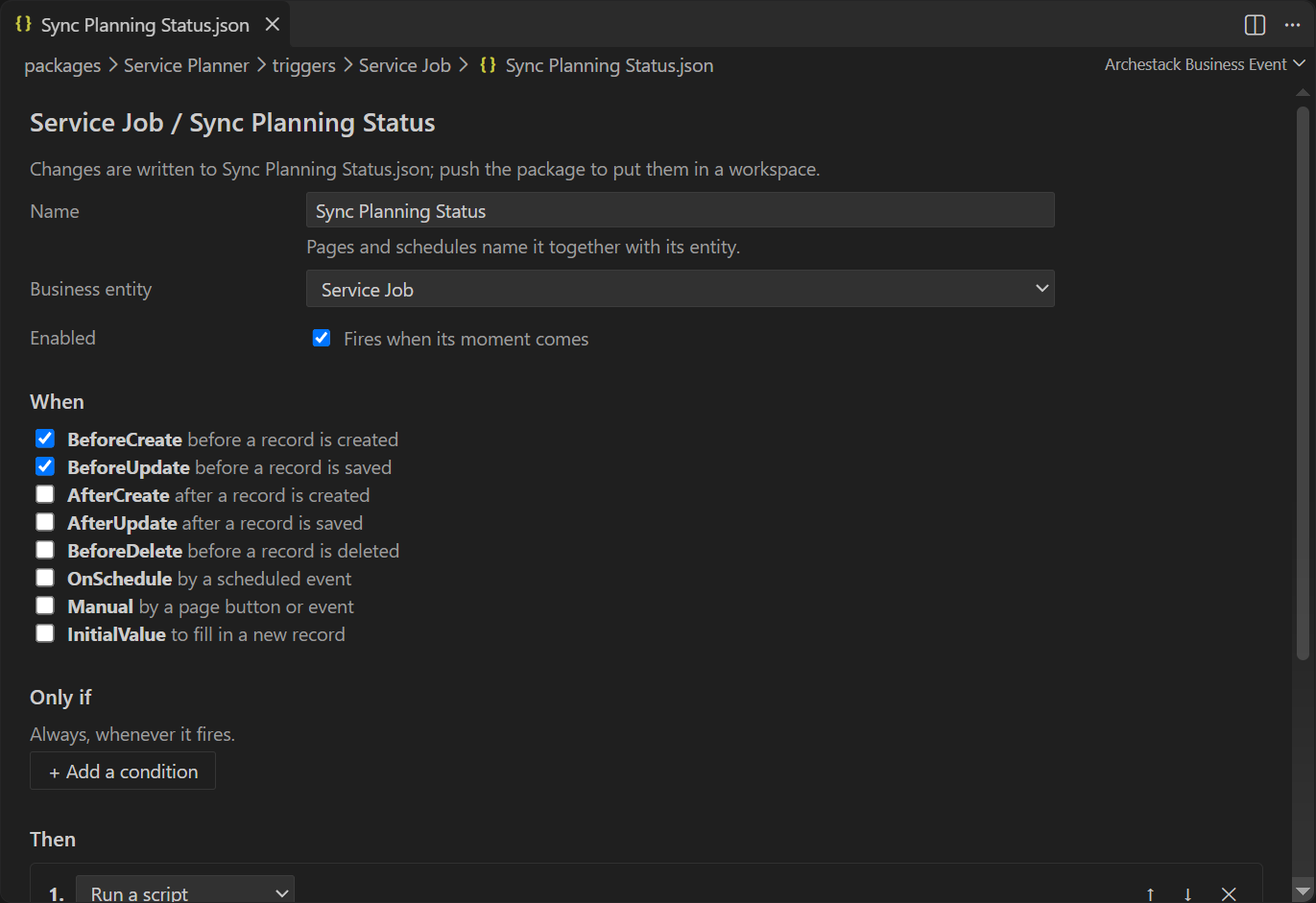
An artifact's settings are the JSON file beside its code, and opening that file opens a form. A business event's form holds its name, its business entity, whether it is enabled, the moments it fires at, its condition and its actions. Every change in a form is written into the file, so git sees it like any other edit; Edit as JSON opens the text instead. Script modules, pages, PDF and frontend templates, schedules and test cases have forms of their own.
Business entities
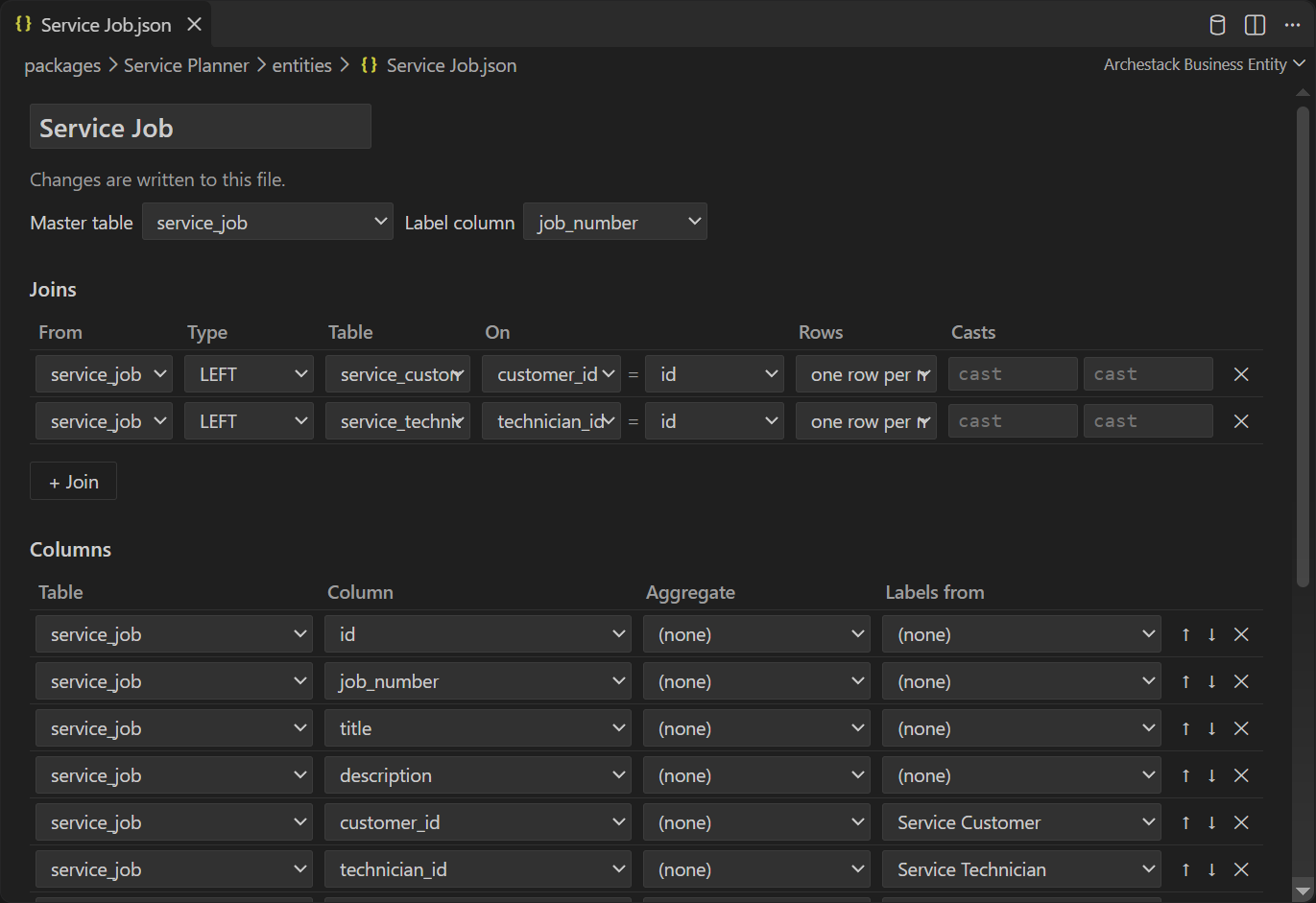
A business entity opens in the entity editor: its master table and label column, its joins (from which table, which kind, onto which table and column, and how many rows a join gives), and its columns in order, each with an aggregate and the entity a key takes its labels from. Tables and columns are picked from the project's database, so a name that does not exist cannot be chosen.
C# with the project's own compiler
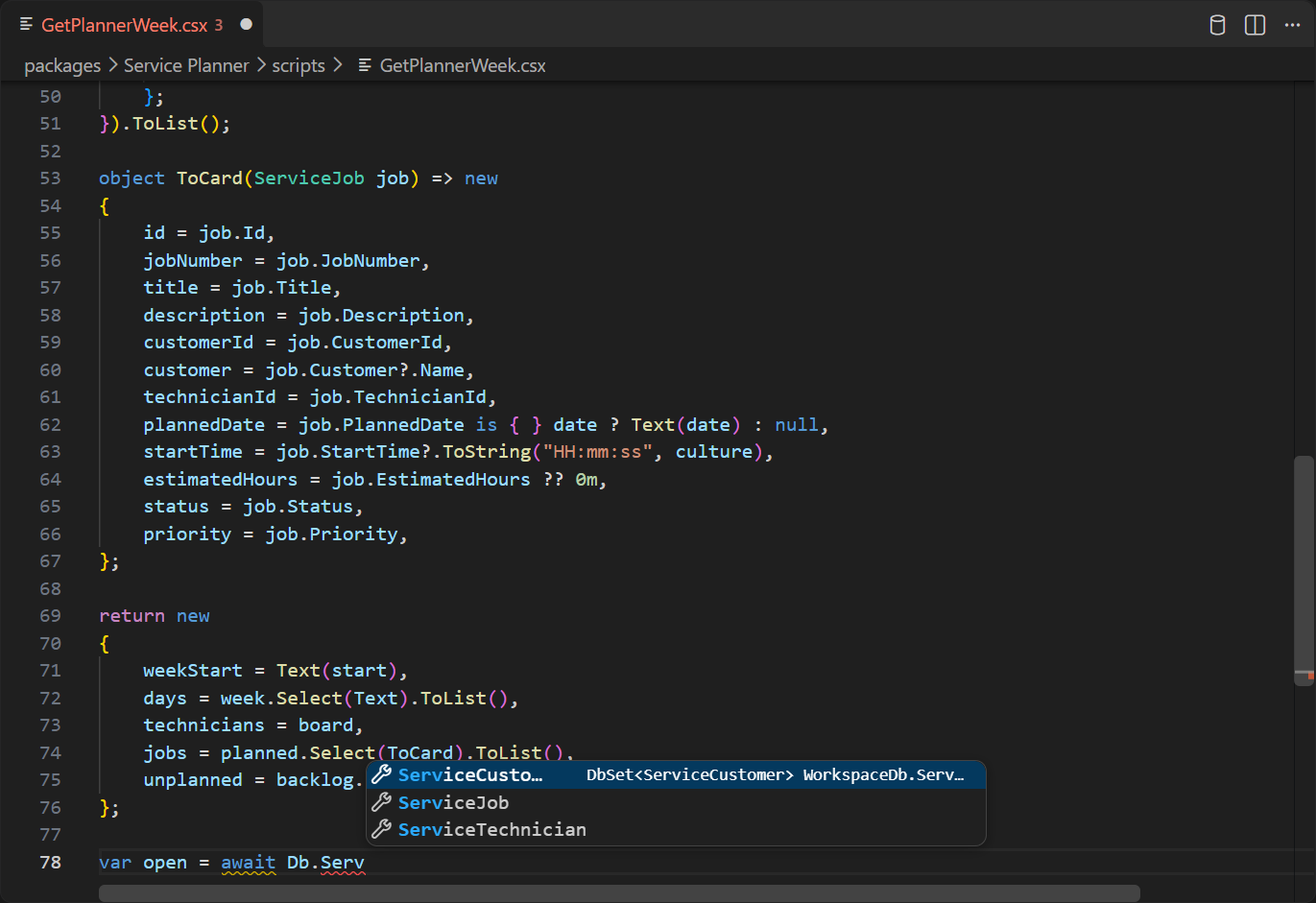
Scripts are compiled by the project itself, against the same globals and the same data model they
run with. Every business entity is a typed set on Db, so completion offers
ServiceJob and the other sets, and after the dot, their columns.
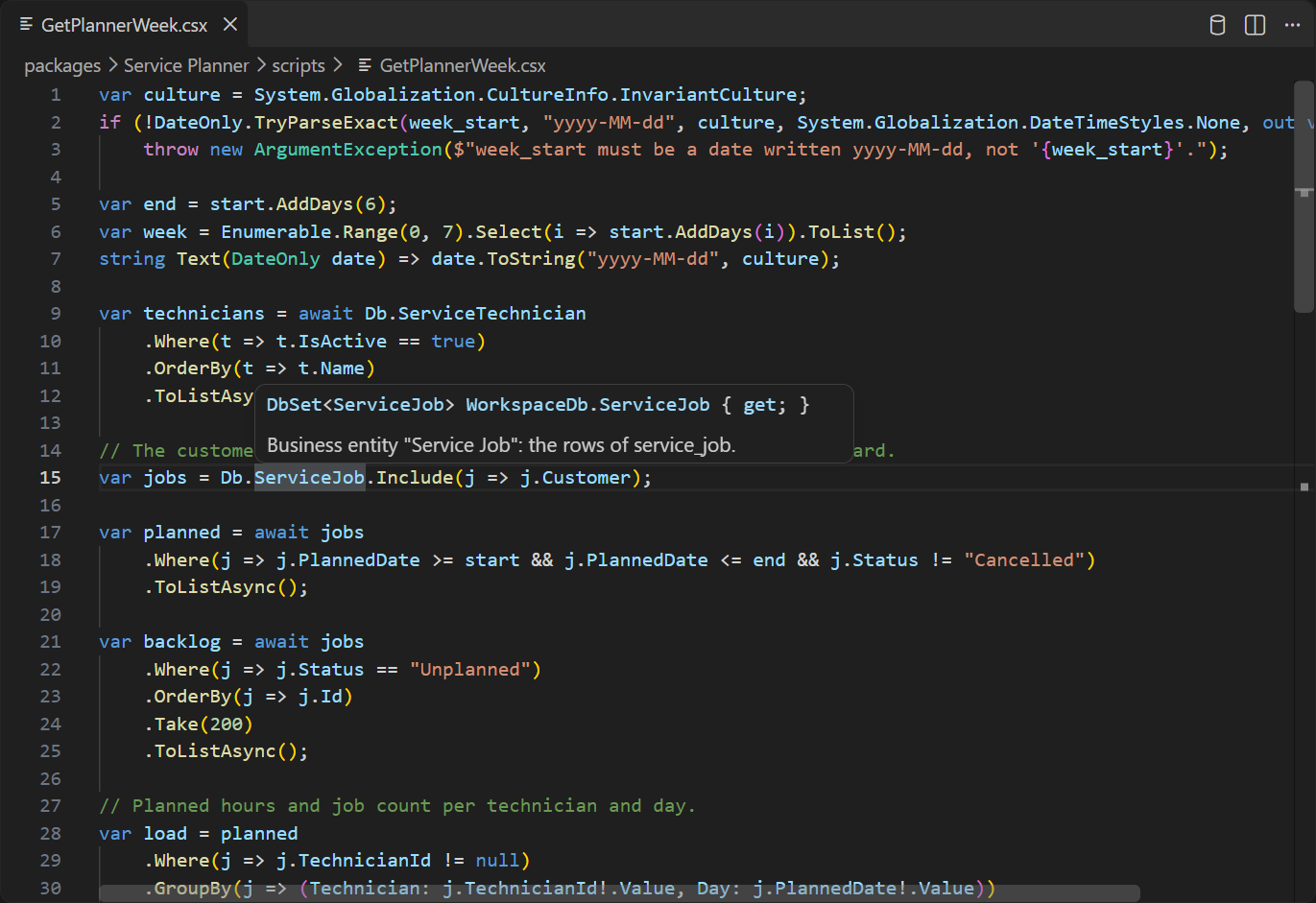
Hovering a name shows its type and documentation, here that Db.ServiceJob is the
business entity Service Job, the rows of service_job. Parameter info
appears while you type a call, and errors are underlined as you type.
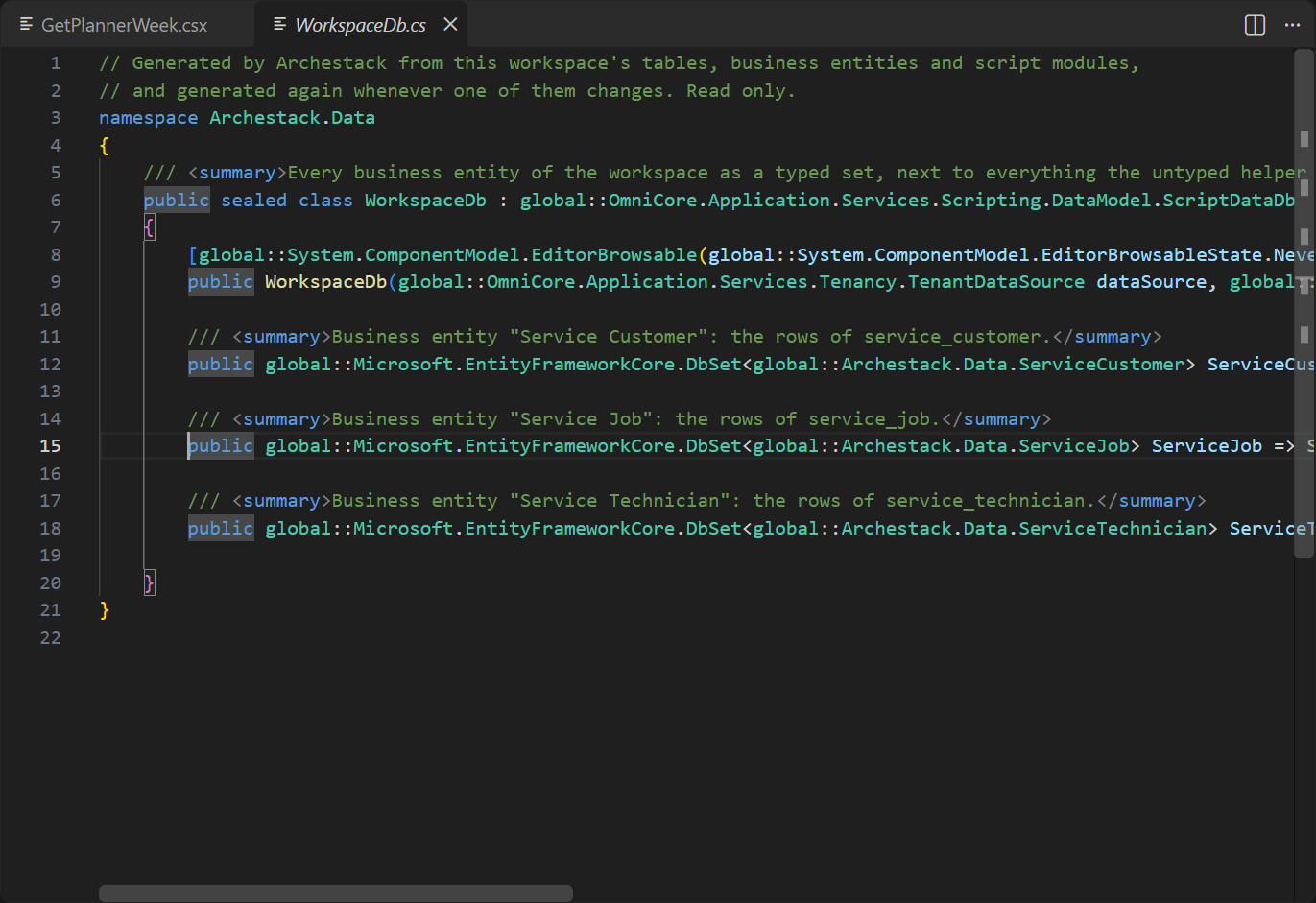
Go to Definition (F12) on a typed set opens the data model the project generated from its tables and business entities, read only. On a script module's method it opens that module's script, and on a parameter the settings that declare it.
Types more than one script needs live in shared C# files under a package's code/
folder, and Shared code in the Workspace view lists a workspace's. They get the
same features, and F12 on a shared type in a script opens the file that declares it.
Testing a script module
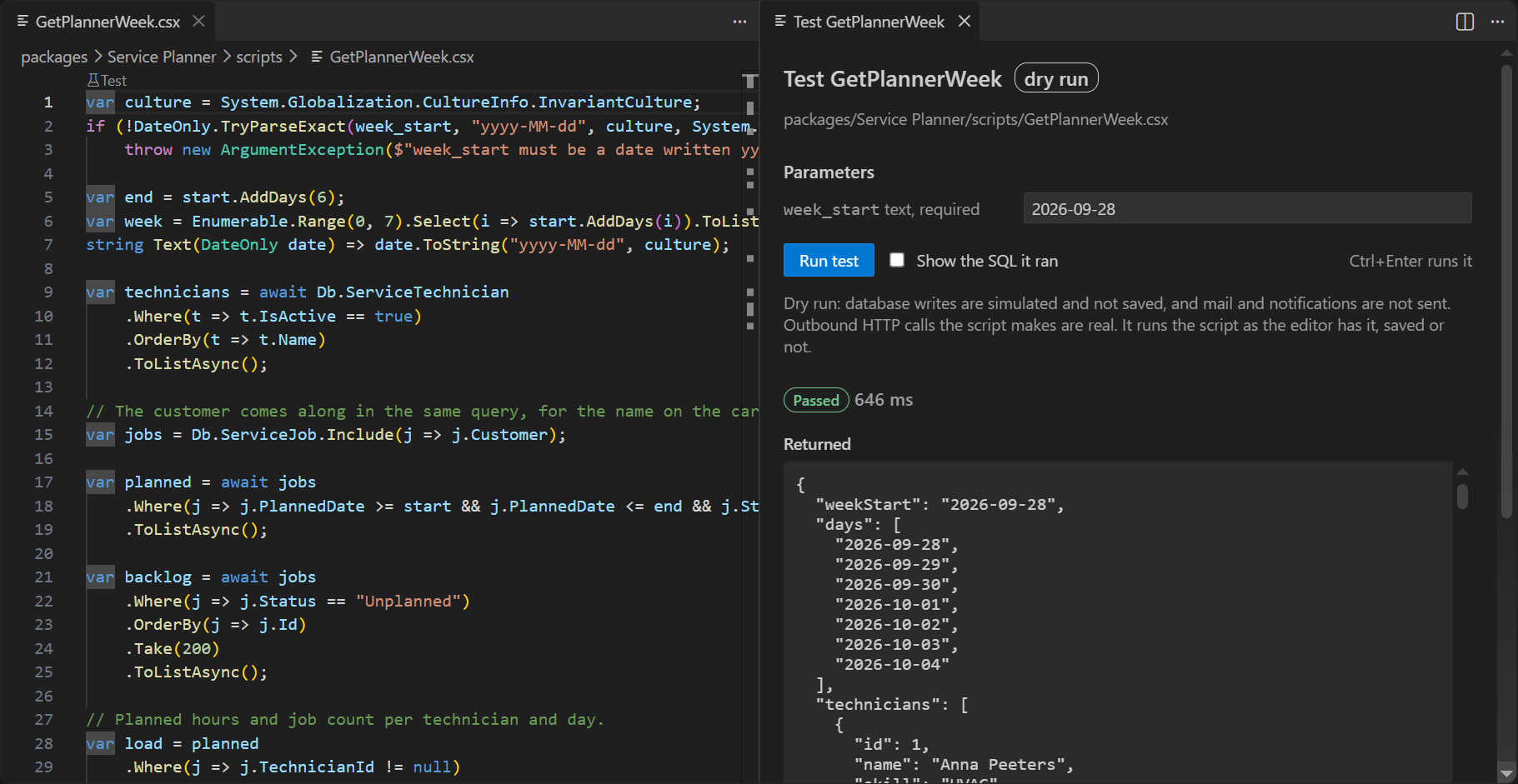
Test, the link above a script module's code, opens a panel beside it that runs the module as a dry run, from the code as the editor has it. It asks for the parameters and remembers them, shows whether it passed, how long it took, what it returned and what it wrote to the log, and lists the writes, mail and notifications it recorded instead of making. A failure shows its error with a button to the line. Show the SQL it ran sends its statements to the SQL Trace panel.
Page code and its reference
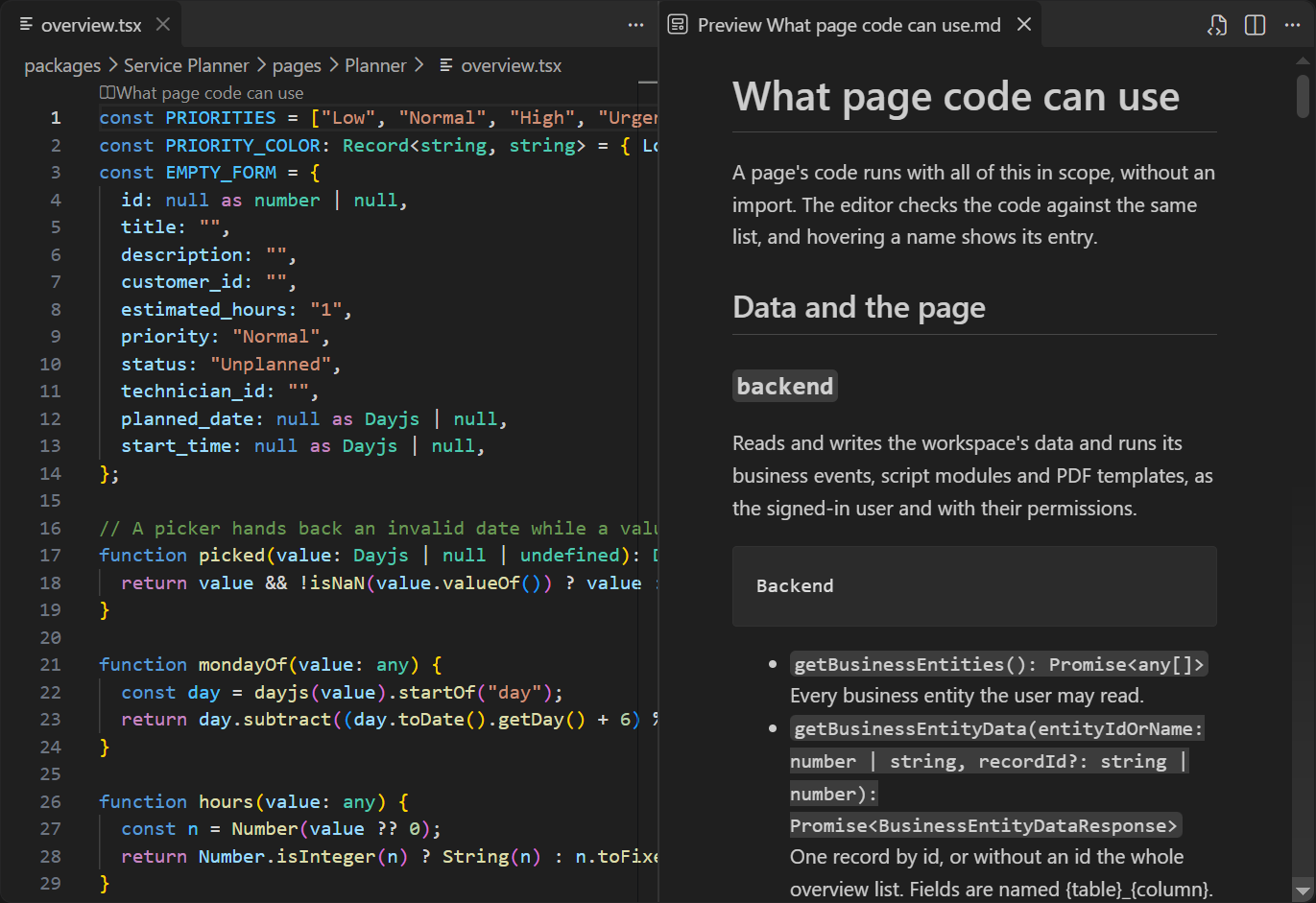
Page and template code is checked against what it has when it runs: backend,
pageContext, React, every MUI component and a row type per business entity.
What page code can use, the link above the code, opens the full list beside it,
every global with what it does and an example.
Page code can import: a page's own files beside its views as ./OrderRow, and shared
modules from a package's code/ folder as @/components/StatusChip. Imports
are typed, F12 follows them, and a rename changes every file that uses the name.
Tables
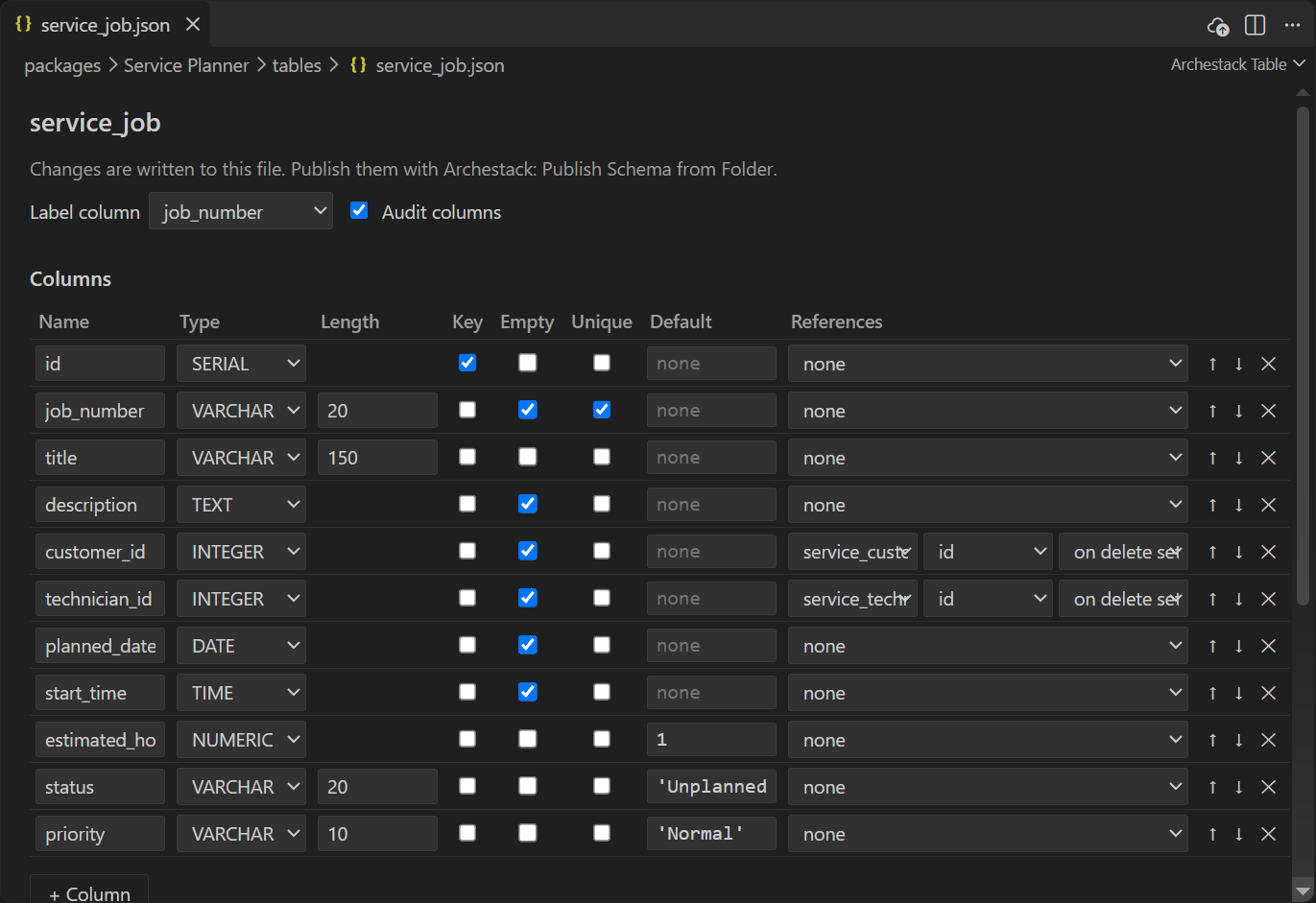
A table file opens in the table editor: its label column, whether it has audit columns, and a row
per column with its name, type, length, key, whether it may be empty, whether it is unique, its
default and the table it references. Indexes follow below. Every change is written into the file,
packages/<package>/tables/<table>.json.
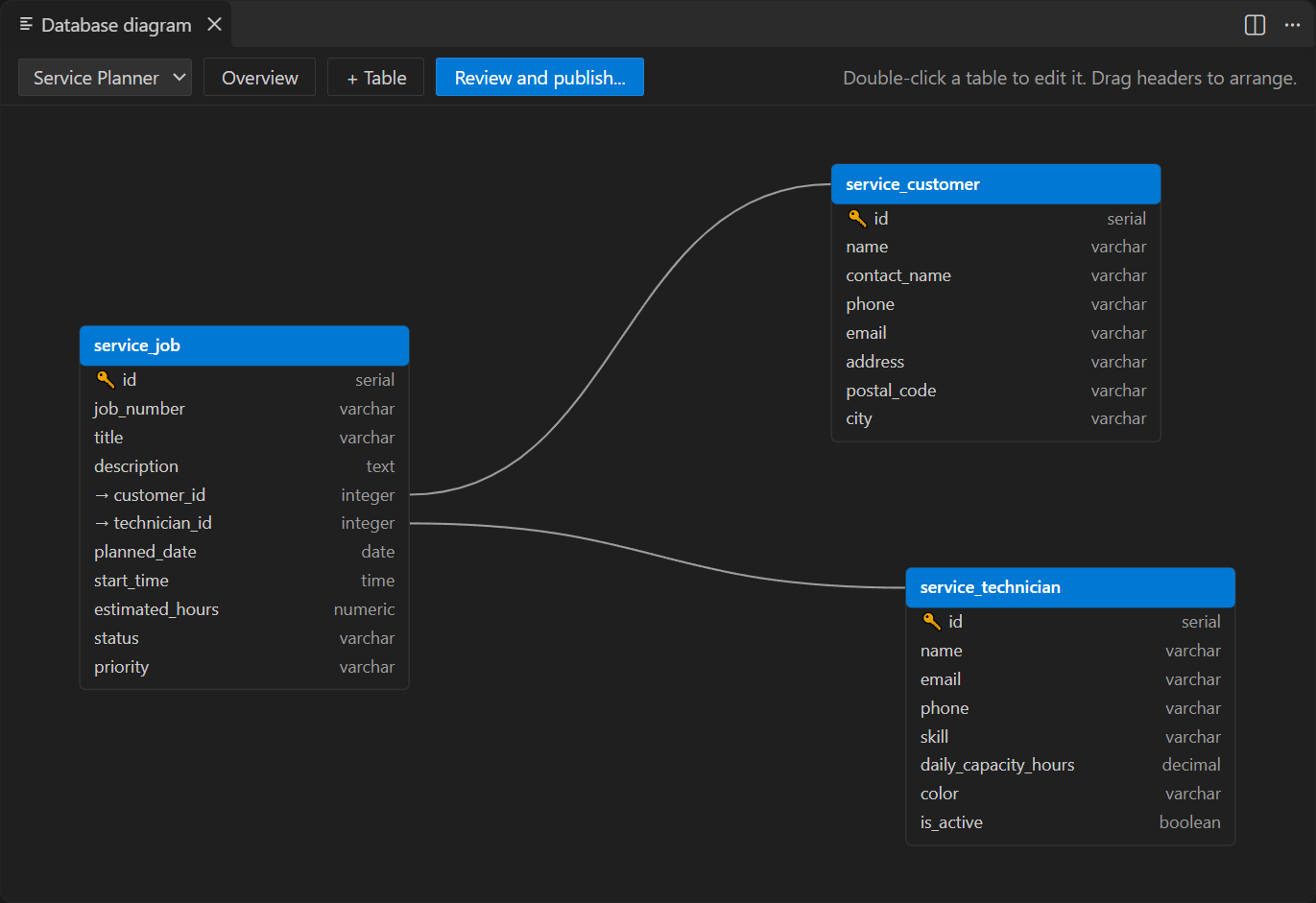
Open Database Diagram draws the tables and their foreign keys. Pick a package to
see only its tables, Overview fits them all in the window, + Table
starts a new one, and Review and publish opens the schema review. Double-click a
table to edit it; drag a header to move it, which is saved in the package's
layout.json.
Migrations
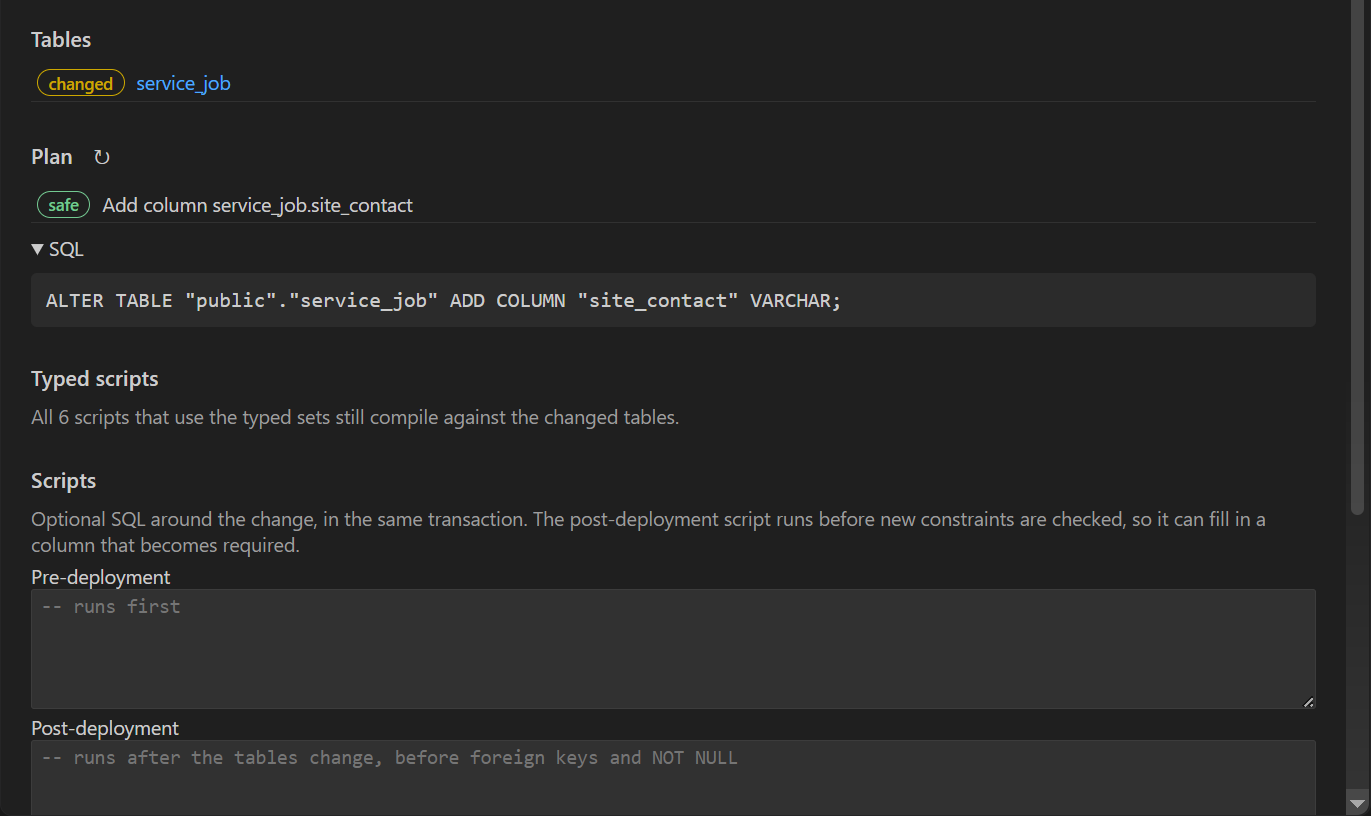
Add Migration compares the table files with the project's database and shows the review: which tables change, every operation with its risk (safe here), the exact SQL, whether every typed script still compiles against the changed tables, and room for SQL to run before and after the change.
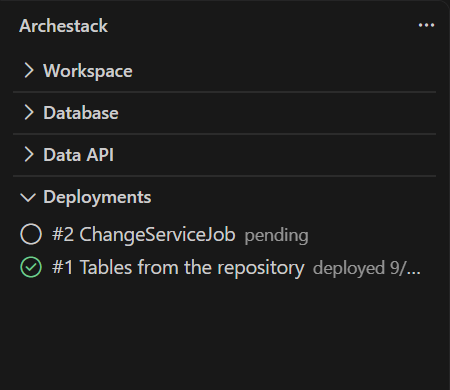
Added, the migration waits in the Deployments view as a pending deployment, named after what it changes, until Deploy runs it. The view is the database's whole history, newest first; Roll Back to Here on an earlier one plans taking the tables back to it.
SQL console
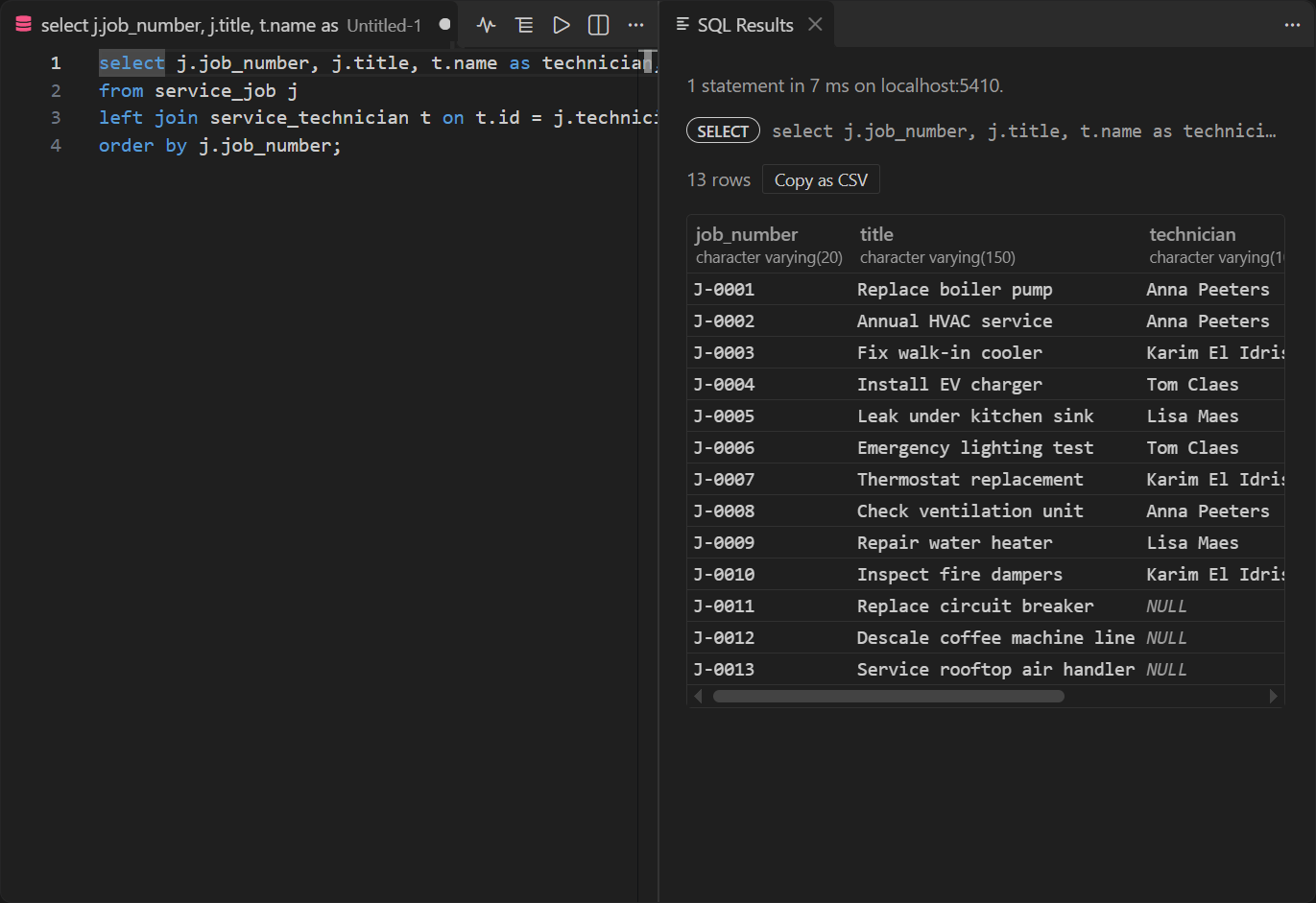
New SQL Query opens an editor on the project's database, with table and column completion. Run Query (Ctrl+Enter) runs the selection or the whole file, statement by statement, and the results open beside it, each result copyable as CSV. An error says which statement failed and where, and the statements before it stay done.
Explain Query and Explain Analyze Query (Ctrl+Alt+Enter) open the statement's plan in Query Plan: every step with its share of the time, rows found against rows expected, and a note where a step reads far more than it keeps. Analyze runs the statement and rolls it back.
SQL trace
Trace SQL, on a script module or business entity in the Workspace view or on its file, runs the module (a dry run unless you choose otherwise) or reads the entity as a grid does, and lists what it sent to the database in SQL Trace: every statement with its values, its time and the code that sent it, in order or with the same statement together, where a query sent once per row stands out. Each statement explains, opens as SQL or copies with its values in place. The Testing view's Run with SQL Trace traces test cases.
Tests
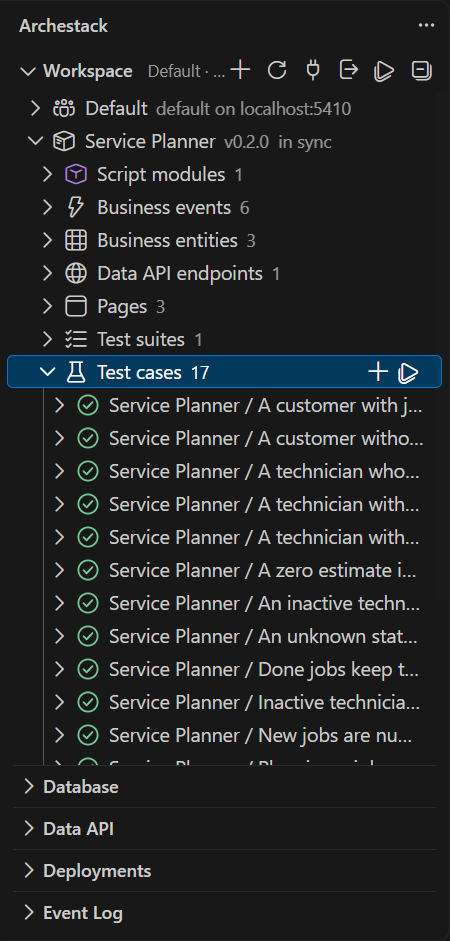
Run Tests runs every package's tests, or one package's, suite's or case's from their own run button. Each case runs in a sandbox database of its own and shows its result in the tree when it finishes; clicking a case that ran opens what it checked, expected against actual, and what it printed. The Testing view lists the same cases.
Event Log
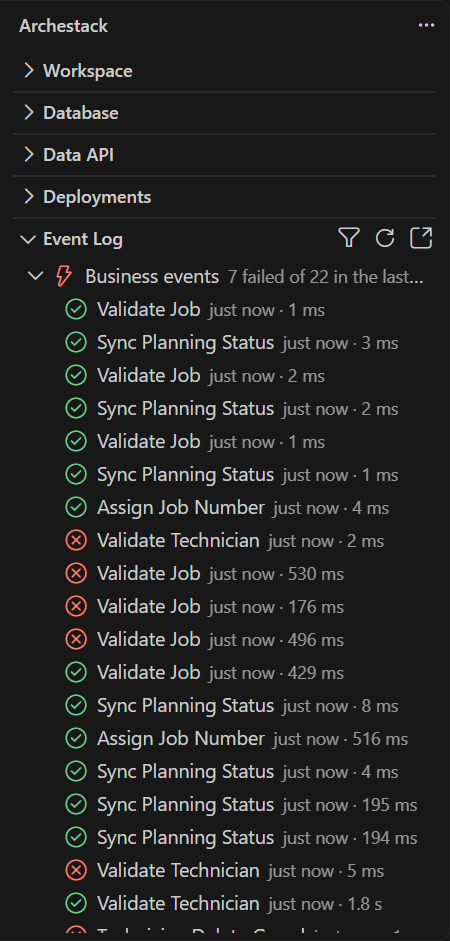
The Event Log view shows what ran in the project, grouped by kind, with the last day's failures and total on each group. Here the business events the tests set off: most succeeded, and the ones a test expected to refuse a save failed. A failure is counted on the view's badge and announced as it happens. Clicking an entry opens everything it recorded, and Open Artifact goes to the script it failed in, on the failing line.
Data API
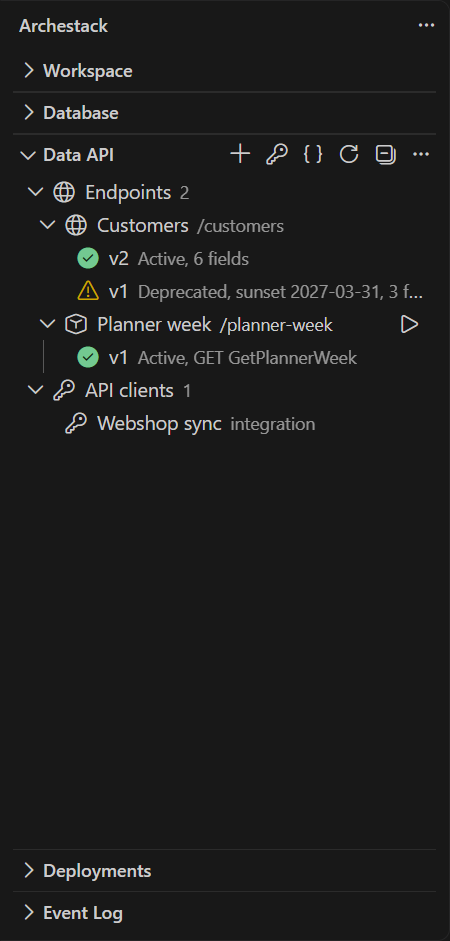
The Data API view lists the project's endpoints, each with its versions and their status, and its API clients. The buttons in its title add an endpoint or an API client, and open the OpenAPI document of everything you may call. Clicking an endpoint opens it, from the folder when a package there holds it; clicking a version that is served tries it.
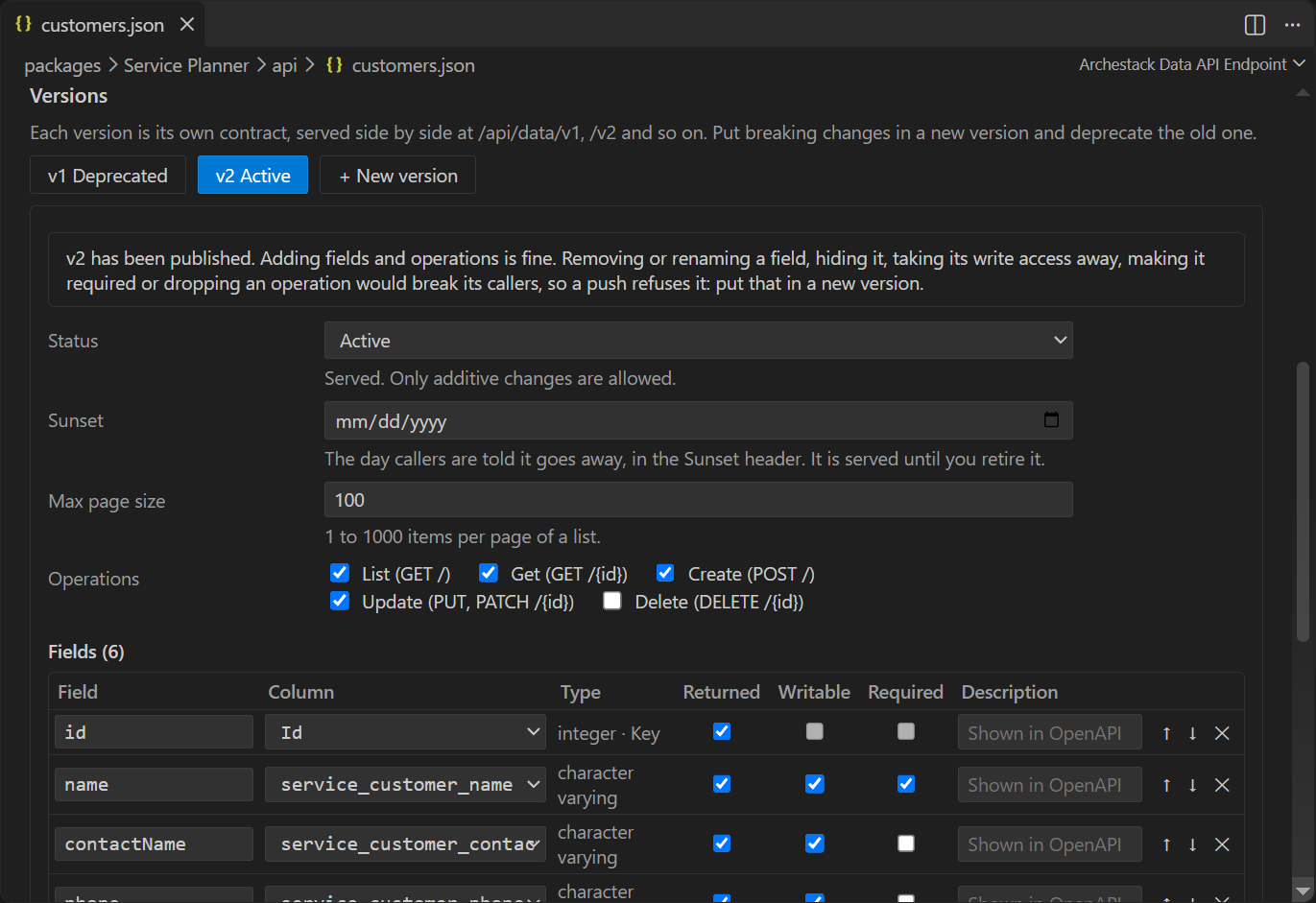
An endpoint's form edits api/customers.json: the entity it serves, its name and route,
and each version with its status, sunset day, page size, operations and fields. The field table
takes each field's column from the entity and says when a column cannot be written. A version that
has been published says so, since it only grows; + New version copies the one
shown, for the change that would break it. Who can call the endpoint is not in the file:
Edit access in the workspace opens its grants in the project.
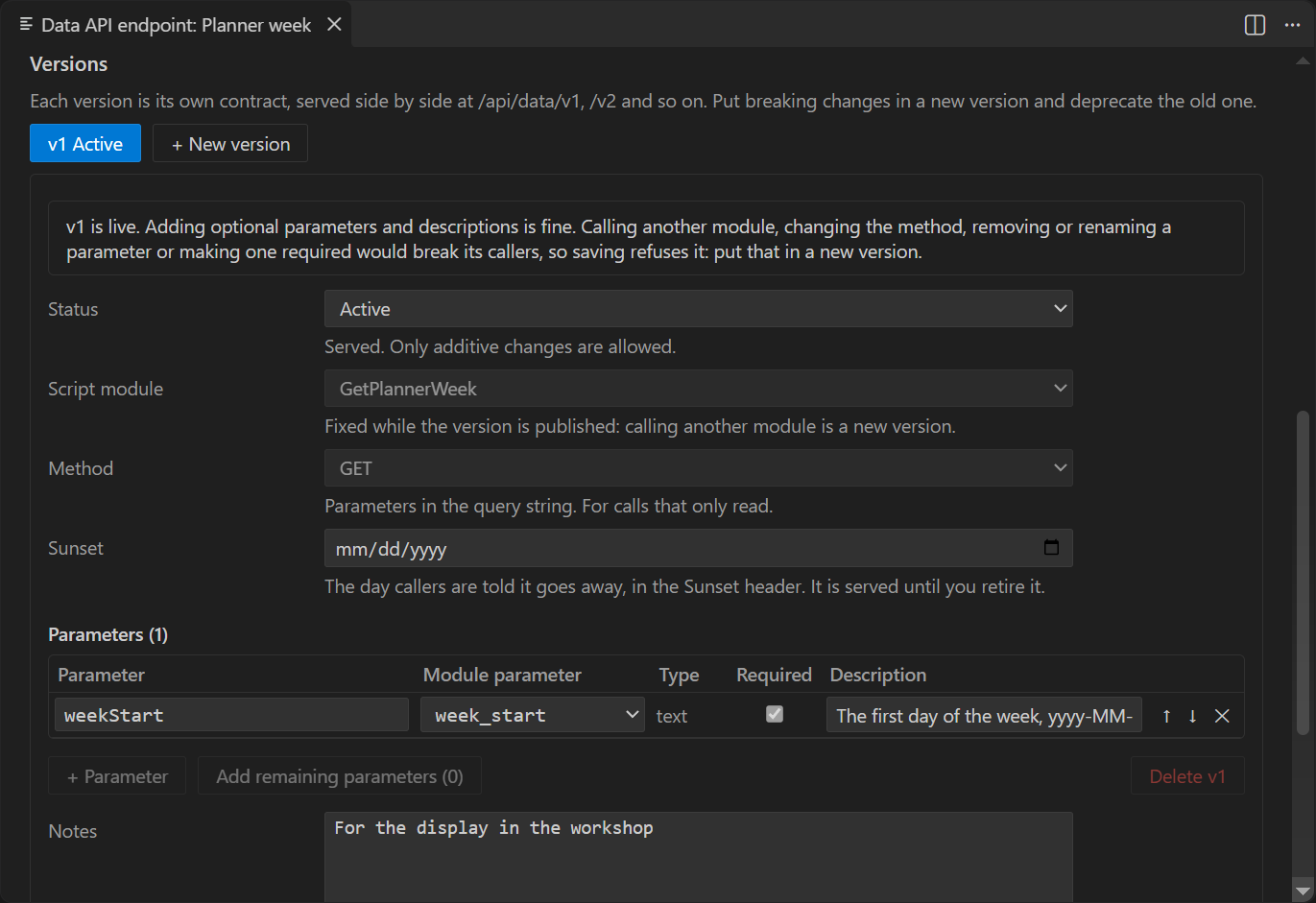
An endpoint can call a script module instead of serving an entity. Each version names the module and its method, POST with the parameters in a JSON body or GET with them in the query string, and lists the parameters callers send: a public name over one of the module's parameters, its type, whether it is required, and a description. Add remaining parameters adds the module's others, and the form flags a parameter the module needs that the version does not pass. Once published, a version keeps its module and method and gains only optional parameters. A module marked admin only is called by admins and owners alone, and the form says so.
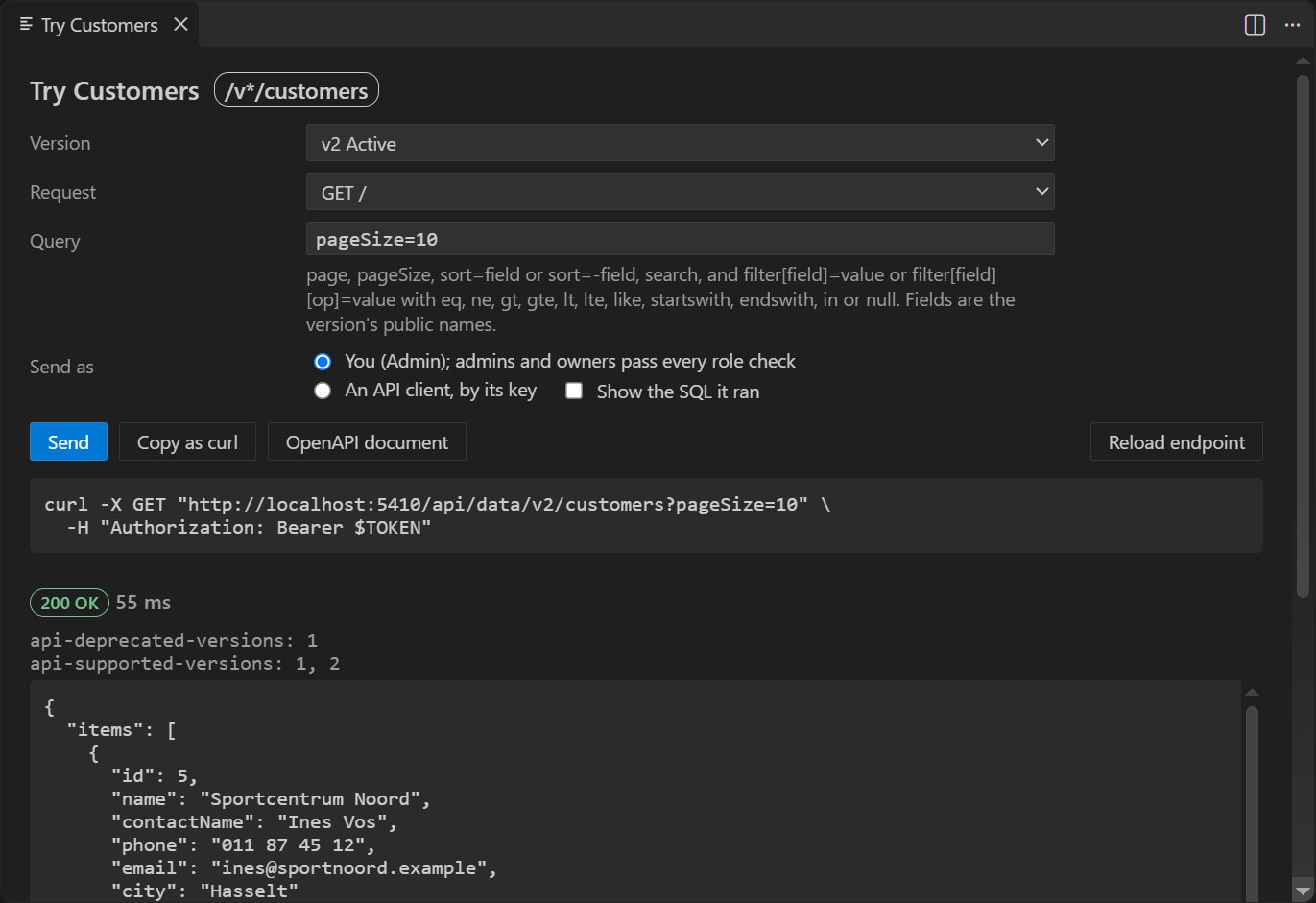
Try It sends real requests to a version: a list with a query, a get, or a create, update or delete with a sample body made from the version's writable fields; on an endpoint that calls a script module, the call with sample parameters. Send them as yourself, with the SQL they ran if you like, or with an API client's key, to see what that client is allowed. The answer shows as it came, with its status, its versioning headers and its body, and Copy as curl gives the same request with a placeholder where the secret goes.
An API client opens in a form of its own: its name, roles, expiry and whether it is enabled. Creating one, or Rotate Key on one, shows its key once, with a command to check that it works.
Workspace settings
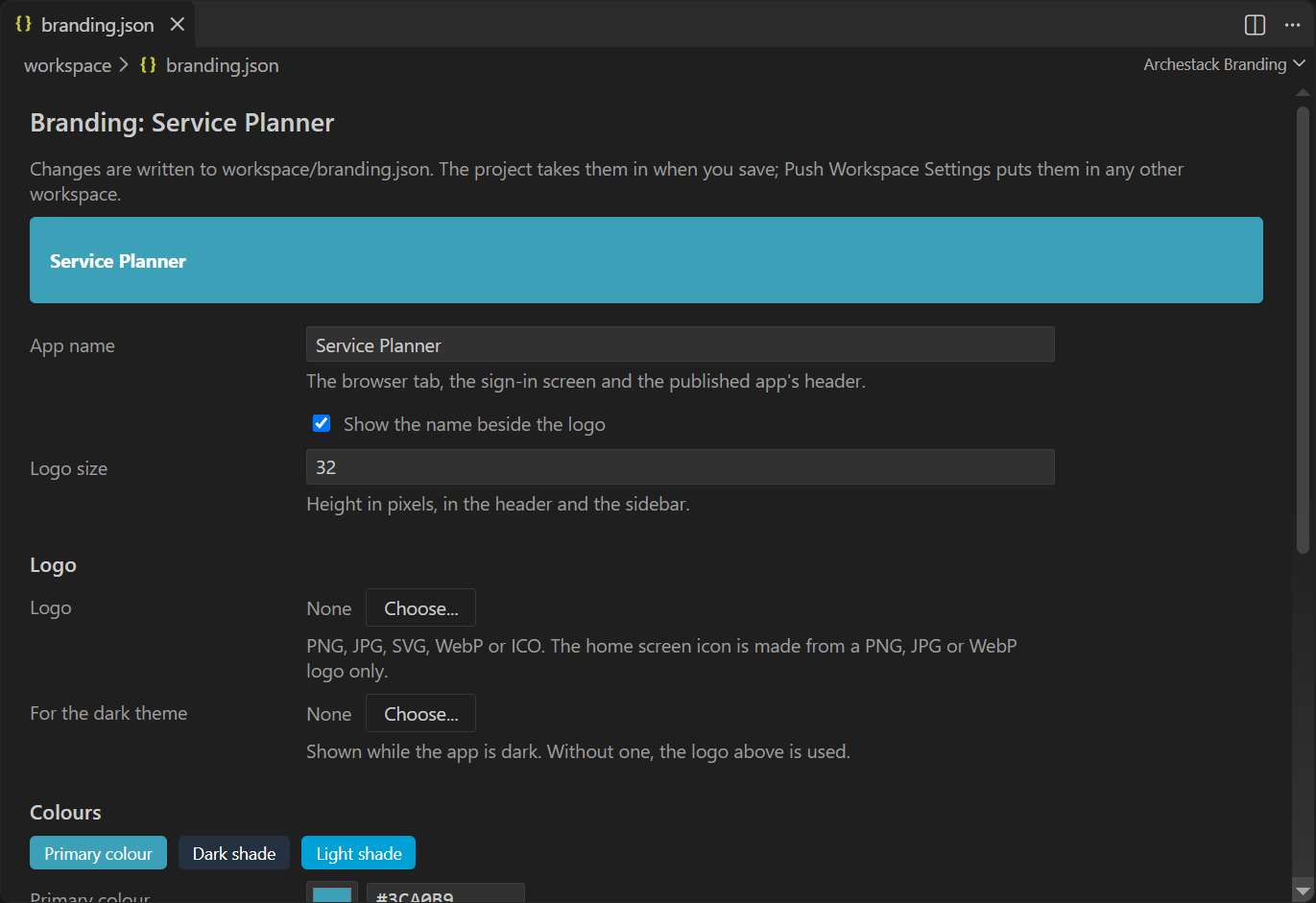
The workspace's own settings are files in workspace/ and open in forms too. The
branding form shows a preview bar in the app's colours, the app name, the logo and its size, and
the colours; the app layouts form holds the published app's header and sidebar. The project takes
them in when you save.
Where this goes next
Archestack in VS Code covers installing the extension, starting a project and working as a team, and Deployment strategy how the repository reaches test, acceptance and production.