Generate PDF invoices
This tutorial adds a printable PDF invoice for each Deal in the mini-CRM you built in Build your first app. By the end you'll have an invoice template that pulls a deal's company, line items, and totals, rendered live in the editor's preview pane and callable from external systems via REST.
Total time: ~25 minutes. You'll touch PDF Templates and extend the schema with a line-item table.
Trial limitation: PDF rendering is disabled inside the trial environment to keep the shared headless-Chromium pool from being overloaded. Both the editor's live preview pane (POST /api/v1/pdf-templates/{id}/preview) and the publicPOST /api/v1/pdf-templates/generate/<name>endpoint return 403 until you're on a paid environment. You can still author the template (data script, HTML, settings, parameters) and save it, the preview pane will show the 403 until rendering is re-enabled. Plan to verify the rendered output on a non-trial environment before relying on it.
Prerequisites
You should have the mini-CRM from Build your first app
deployed: company, contact, deal tables; their Business
Entities; the three pages. If you skipped that tutorial, the rest of this page won't make
much sense.
Step 1 - Add line items to the schema (5 min)
A real invoice has line items, not just a single amount. Add a deal_line table.
- Open Schema Designer → Add Table → name it
deal_line. -
In the right panel's Columns tab, add:
id· SERIAL, PK (auto)deal_id· INTEGER, requireddescription· VARCHAR(300), requiredquantity· DECIMAL, required, default1unit_price· DECIMAL, required, default0line_total· DECIMAL, required, default0- derived, kept in sync below
-
Switch to the Relations tab. Add a relationship: FK column
deal_id, Relation type One-to-Many, References tabledeal, References columnid. Click Add Relationship. - Click Deploy, review the Generated SQL, click Deploy at the top right.
Wire up the BE, page, and a tiny event
- Business Entities → Create. Entity Name
deal_line, Master Tabledeal_line, Label Columndescription. Save. -
Open the existing Deals page in Page Editor. In the detail form, click
Add Tab, name the tab Lines, and add a RelatedGrid
section bound to
deal_linewith the join filter deal.id = current record's id. Save and re-publish. - Business Events → Create. Rule Name
Calc deal_line.line_total. Enabled ON. Business Entitydeal_line. Triggers: Before Create + Before Update. No conditions. Action: Execute Script with body:
Save.Entity.line_total = (decimal)(Entity.quantity ?? 0) * (decimal)(Entity.unit_price ?? 0);
Click into a Deal, switch to the new Lines tab, and add two or three lines. The
line_total column should populate automatically each time you save a line.
Step 2 - Write the PDF data script (5 min)
Open PDF Templates → click + Create. The editor opens with a
Name field at the top (type DealInvoice), a Description field, and five tabs:
HTML Template, Data Script, Settings,
Params, JSON. The PDF Preview pane is
always visible on the right and re-renders when you save.
Switch to the Params tab → click + Add. Name
deal_id, Type int, Required ticked. (The tab label updates to
Params (1) once you've defined one.)
Switch to the Data Script tab, the Monaco C# editor opens on the left, with the PDF preview still on the right. Paste:
var deal = await Db.GetAsync("deal", deal_id);
if (deal == null) throw new Exception($"Deal {deal_id} not found");

var company = await Db.GetAsync("company", deal.company_id);

var lines = await Db.From("deal_line")
    .Where("deal_id", "=", deal_id)
    .OrderBy("id")
    .ToListAsync();

decimal subtotal = 0;
foreach (var l in lines) subtotal += (decimal)(l.line_total ?? 0);

var vatRate = 0.21m;       // Belgian standard VAT, adjust per customer
var vat     = Math.Round(subtotal * vatRate, 2);
var total   = subtotal + vat;

return new {
    InvoiceNumber = $"INV-{deal.id:D6}",
    InvoiceDate   = DateTime.UtcNow.ToString("yyyy-MM-dd"),
    Deal          = new { Title = (string)deal.title, Stage = (string)deal.stage },
    Company       = new { Name = (string)company.name, Industry = (string?)company.industry },
    Lines         = lines.Select(l => new {
        Description = (string)l.description,
        Quantity    = l.quantity,
        UnitPrice   = l.unit_price,
        LineTotal   = l.line_total
    }),
    Subtotal      = subtotal,
    VatRate       = (int)(vatRate * 100),
    Vat           = vat,
    Total         = total
};
The script returns an anonymous object. Whatever you return becomes the data context for the HTML template, every property is accessible by name in Scriban placeholders.
Why all the casts?Db.GetAsyncand.ToListAsync()returndynamic, which Scriban can sometimes mishandle when a value is null or its runtime type isn't what the template expects. Casting to a concrete type at the boundary (where you build the return object) gives you predictable behaviour.
Step 3 - Write the HTML template (10 min)
In the HTML Template editor, paste this (the styling is the bulk of the bytes):
<!doctype html>
<html>
<head>
  <meta charset="utf-8">
  <title>{{ InvoiceNumber }}</title>
  <style>
    @page { size: A4; margin: 24mm 18mm; }
    body { font: 11pt/1.5 'Inter', sans-serif; color: #1e2838; }
    h1 { font-size: 24pt; margin: 0 0 4pt; letter-spacing: -0.02em; }
    .muted { color: #566277; font-size: 10pt; }
    .row { display: flex; justify-content: space-between; margin-bottom: 24pt; }
    .right { text-align: right; }
    table { width: 100%; border-collapse: collapse; margin: 16pt 0; }
    th { text-align: left; padding: 6pt 4pt; border-bottom: 2px solid #1e2838; font-size: 9pt; text-transform: uppercase; letter-spacing: 0.08em; }
    td { padding: 8pt 4pt; border-bottom: 1px solid #e4e7ed; }
    td.num { text-align: right; font-variant-numeric: tabular-nums; }
    .totals { margin-left: auto; width: 60mm; }
    .totals td { padding: 4pt 4pt; border: none; }
    .totals .grand { border-top: 2px solid #1e2838; font-weight: 700; font-size: 13pt; }
    footer { margin-top: 32pt; font-size: 9pt; color: #8c97aa; text-align: center; }
  </style>
</head>
<body>
  <div class="row">
    <div>
      <h1>Invoice</h1>
      <div class="muted">{{ InvoiceNumber }} · {{ InvoiceDate }}</div>
    </div>
    <div class="right">
      <strong>Bill to</strong><br>
      {{ Company.Name }}<br>
      <span class="muted">{{ Company.Industry }}</span>
    </div>
  </div>

  <div><strong>{{ Deal.Title }}</strong> <span class="muted">· {{ Deal.Stage }}</span></div>

  <table>
    <thead>
      <tr>
        <th>Description</th>
        <th class="num">Qty</th>
        <th class="num">Unit price</th>
        <th class="num">Line total</th>
      </tr>
    </thead>
    <tbody>
      {{ for line in Lines }}
      <tr>
        <td>{{ line.Description }}</td>
        <td class="num">{{ line.Quantity }}</td>
        <td class="num">€ {{ line.UnitPrice }}</td>
        <td class="num">€ {{ line.LineTotal }}</td>
      </tr>
      {{ end }}
    </tbody>
  </table>

  <table class="totals">
    <tr>
      <td>Subtotal</td>
      <td class="num">€ {{ Subtotal }}</td>
    </tr>
    <tr>
      <td>VAT ({{ VatRate }}%)</td>
      <td class="num">€ {{ Vat }}</td>
    </tr>
    <tr class="grand">
      <td>Total</td>
      <td class="num">€ {{ Total }}</td>
    </tr>
  </table>

  <footer>Thank you for your business.</footer>
</body>
</html>
See the result
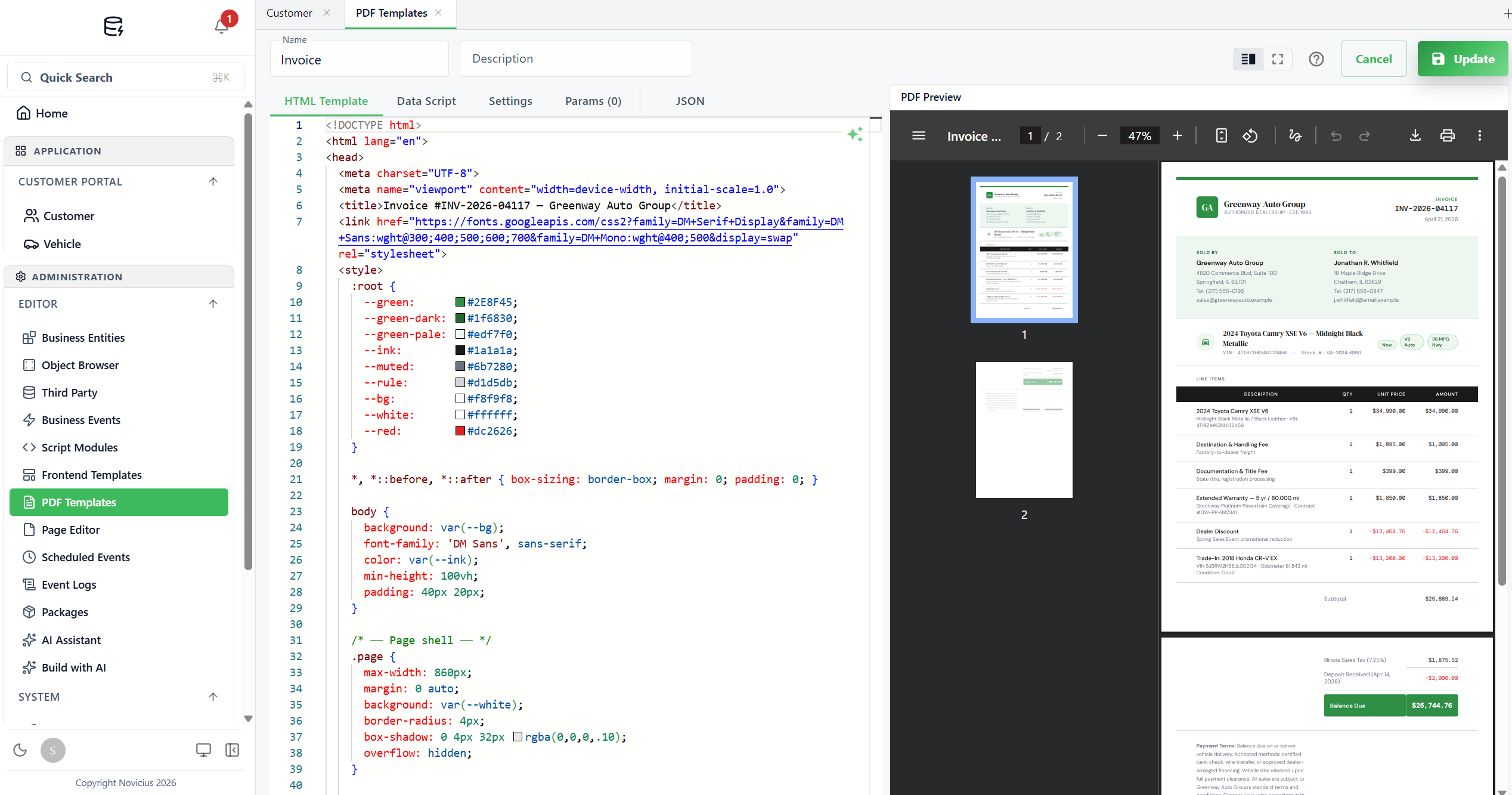
Click the green Update (or Create on a new template) button at the top right to save. The PDF Preview pane on the right re-renders. A thumbnail column on the preview's left edge shows page 1, page 2, etc.; the main pane shows the full render with a built-in PDF viewer toolbar (zoom, rotate, download, print, more). Iterate by editing the HTML or Data Script tab and saving again.
The icon buttons in the top-right of the editor (next to Cancel) let you toggle the preview pane's visibility and switch to full-screen editing mode. The help (?) icon opens an inline cheat-sheet for Scriban syntax.
Things that often need a tweak:
- Number formatting. Decimals come back as raw numbers; if you want fixed 2-decimal display, format in the data script (
l.line_total.ToString("0.00")) and return strings.- Currency symbol. Hardcoded as € above, externalise to a parameter or a Branding setting if you serve multiple currencies.
- Page breaks. For long line-item lists, add
page-break-inside: avoidtotrin the CSS so a row doesn't split across pages.- Fonts. The renderer has Liberation, DejaVu, and Noto families. If you reference Inter (as above) it falls back to a system sans. To embed a brand font, base64-encode a
.woff2and inline it via@font-face.- HTML in values. Every
{{ }}value is HTML-encoded, so a description containing<b>prints as the text<b>. For trusted HTML only, opt out with{{ notes | html.raw }}. Never do that on a value users can type, because their markup would end up in the PDF.- Images. The renderer only loads images, fonts and stylesheets from public
http(s)addresses anddata:URLs. A logo on an internal address (localhost,192.168.x, a container name) won't appear in the PDF, use a public URL or adata:URL instead.
Step 4 - Generate the PDF from outside the app (5 min)
The template is now invokable by name from any HTTP client. Three endpoints, all under
/api/v1/pdf-templates:
-
POST /api/v1/pdf-templates/{id}/preview- renders the template by its database ID and returnsapplication/pdf. Used by the editor's preview pane. -
POST /api/v1/pdf-templates/generate/{name}- renders by name and returnsapplication/pdf(browser download). -
POST /api/v1/pdf-templates/generate/{name}/base64- same but returns{ "data": "<base64>" }. Useful when the caller wants to embed the PDF in another response payload.
From a shell, with a Bearer token from the admin app:
curl -X POST \
  -H "Authorization: Bearer $TOKEN" \
  -H "Content-Type: application/json" \
  -d '{"deal_id": 1}' \
  https://demo1.archestack.eu/api/v1/pdf-templates/generate/DealInvoice \
  --output invoice.pdf
From an external system (a Zapier integration, a partner's order-confirmation flow), call the same endpoint with the parameters in the JSON body. The platform runs the data script with those parameters, renders the HTML, and streams the PDF back.
Trial mode: both thegenerateendpoint and the{id}/previewendpoint return 403 in the trial environment, so neither the externalcurlcall nor the editor's preview pane will return a PDF until you're on a paid environment. The template metadata (data script, HTML, settings) still saves normally, the rendering is what's gated.
Recap
- You extended the schema with a child table (
deal_line) and used a Before trigger to keep a derived field in sync. - You built a PDF template, a data script that pulls the right rows, an HTML body that renders them with Scriban placeholders.
- You learned the REST endpoints for invoking the template from anywhere, including the preview endpoint that powers the editor itself.
Where to go next
- PDF Templates reference - covers the full Scriban surface, font handling, page-break tricks, and the editor's Settings tab (margins, paper format, orientation).
- Scheduled Events - call the PDF generate endpoint from a Script Module and email the result to the customer on a monthly schedule.